

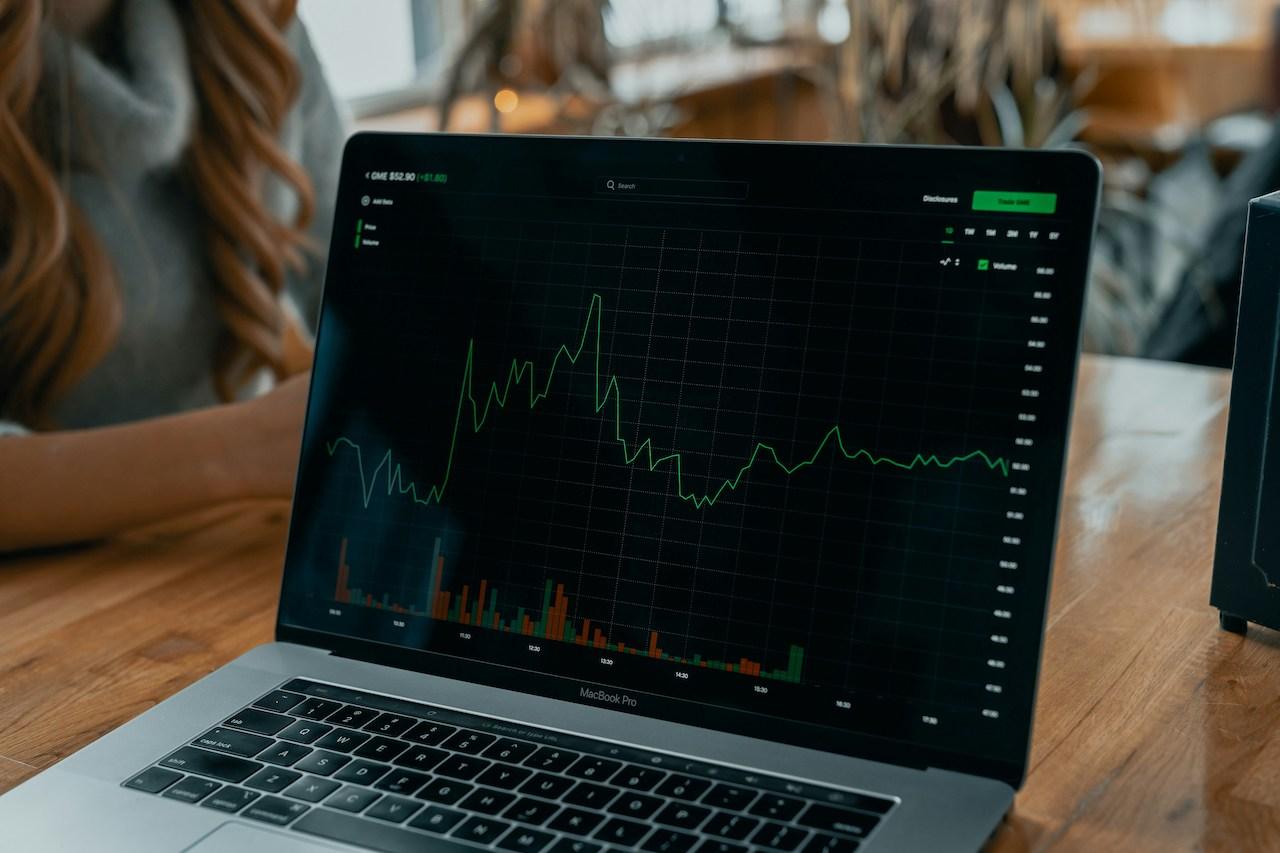
MetaTrader 5 (MT5) is a trading platform developed by MetaQuotes. It provides an interface for viewing prices, studying charts and submitting orders through a connected trading account. The markets, symbols and account conditions available to you depend on the broker and server you connect to.
This beginner guide focuses on MT5 for desktop: opening a demo account, logging in and practising an order. Mobile and web layouts differ. Use the Vestrado MT5 platform page to find the platform options provided by Vestrado.
Before you start: platform, broker and account
MT5 is the platform, not your broker or a guarantee of returns. A broker provides access to its trading server and the account conditions under which you trade.
Keep these three items separate: the website or client-portal login, the MT5 trading-account login, and any MQL5.community account. Do not assume that the same password or account number works for all three.
For your first practice session, use a demo account with virtual funds. Confirm which account is connected before submitting any order. A familiar chart or a small order volume does not prove that you are in demo mode.
Open a demo account
On MT5 desktop, choose File, then Open an Account. Search for the broker or server details supplied by your provider, select the relevant server and follow the demo-account option. Save the credentials and server name shown during setup.
Demo accounts use virtual money. A real account involves real funds and the provider's account-opening requirements. See the official MetaTrader 5 account-opening guide for the platform procedure.
A demo is useful for learning the controls and recording a practice process. Its results do not establish future live performance. Before moving beyond practice, review the account-type comparison and the terms for the account you intend to use.
Log in to the correct MT5 server
On desktop, use File, then Login to Trade Account. Enter your trading-account number, the appropriate password and the server specified for that account. A correct account number on the wrong server will not connect you to the intended account.
MT5 distinguishes a master trading password from investor access. Investor access allows observation without normal trading permissions. The official MT5 connection guide explains the login details and access types.
If you cannot connect, check the server, account number, connection and access type before attempting any trade. Do not post passwords in screenshots or send them to someone offering unofficial login help. For Vestrado account details, use the contact page.
Inspect an instrument before placing an order
In Market Watch, select the instrument you intend to practise with. Open Specification from its context menu and review contract size, minimum volume, volume step and available trading conditions. The same volume label can represent different exposure on different instruments.
The official Market Watch guide documents symbol specifications. Check the values on your connected account rather than copying a lot size from a general tutorial.
Build a habit of writing down the instrument, account currency, intended volume and reason for the practice trade. When interpreting margin, use the leverage and margin guide. A smaller margin requirement does not mean that a position has less exposure.
Practise a market order on desktop
First confirm that the connected account is a demo. In Market Watch, right-click a symbol and choose New Order, or open the order window with F9. Review the symbol and volume, then the available execution controls. Order labels and available settings depend on the execution mode.
For a demo exercise, inspect any stop-loss and take-profit fields before submitting the chosen buy or sell action. Afterwards, check the Trade tab for the resulting position or order. An open position and a pending order are different states; do not assume that every submission creates an immediate position.
To practise closing an open position, use its context menu in the Trade tab and choose Close Position. Review the requested volume and confirm the close action. Check the account history afterwards. Use the official guide to executing trades for the controls applicable to your execution mode.
This sequence is a platform exercise, not a recommendation to buy or sell an instrument. Do not use live funds merely to test whether you understand a button.
Common beginner mistakes to avoid
- Mixing up a client-portal password and an MT5 trading password.
- Selecting a live server when you intended to practise on demo.
- Assuming identical lot numbers mean identical exposure across instruments.
- Confusing a pending order with an open position.
- Treating a stop-loss instruction as a guaranteed execution price.
- Enabling fast order controls before understanding how orders are submitted.
After each practice session, review whether you selected the intended account, symbol and volume. Record the result and any error message. The aim is a repeatable process, rather than a single profitable demo trade.
What to learn after your first demo session
Once you can connect, inspect a symbol and manage a practice position, study position sizing, trading costs and margin before considering live trading. Compare cent and standard account mechanics, then check the current deposit and withdrawal information.
Keep education separate from promises of performance. Indicators, trading robots and copy features do not establish that a strategy is suitable or profitable. This guide does not verify any third-party signal provider or automated strategy.
Frequently Asked Questions
Is MT5 the same as a broker account?
No. MT5 is a platform. You connect it to an account on a broker's server, and the available instruments and conditions depend on that account.
Why does my website login not work in MT5?
Your trading-account credentials can be separate from your website or portal credentials. Verify the MT5 account number, password and server details supplied for that trading account.
Does a demo account use real money?
Demo trades use virtual funds. Confirm the account type and server before placing an order; an installed MT5 application can connect to different accounts.
Are the steps identical on desktop and mobile?
No. This guide describes desktop navigation. Use the appropriate platform help for Android, iOS or web controls instead of looking for desktop menus on a phone.
Does successful demo trading mean I will profit live?
No. Practice results do not guarantee future returns. Live trading involves financial risk, execution conditions and decisions with real money.
Trading forex and CFDs involves risk. This tutorial explains platform use and does not recommend a trade, account size or trading strategy.




Start your trading journey
Choose flexible trading conditions based on your experience, strategy and trading goals.